
Computer problems can range from a slow PC and crashing programs to Wi-Fi failures, overheating, black screens, storage errors, and Windows startup issues. This troubleshooting guide explains how to identify the cause, try safe fixes, and know when professional repair is necessary.
A computer does not always tell you exactly what is wrong.
A slow PC might be caused by too many startup applications, insufficient storage, overheating, malware, background processes, or aging hardware. A computer that keeps restarting could have a driver problem, excessive heat, faulty memory, power issues, or a deeper hardware fault.
That is why effective computer problems and troubleshooting is not about trying random fixes until something works.
It is about identifying the symptom, finding the pattern, testing the most likely cause, and changing one thing at a time.
This guide covers common computer problems on Windows PCs and laptops, including performance issues, crashes, internet problems, sound failures, USB problems, overheating, battery drain, storage errors, Windows Update failures, black screens, and missing files.
Quick rule: Before attempting a risky repair, back up important files. If the computer shows signs of physical damage, burning, liquid exposure, a swollen battery, or possible storage failure, stop troubleshooting and consider professional assistance.
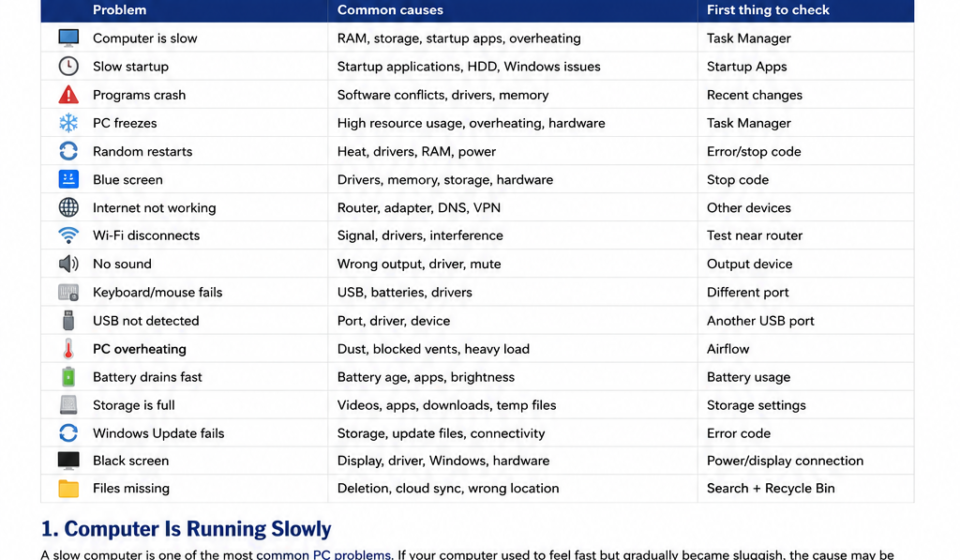
Common Computer Problems at a Glance
Here are some of the most common PC problems people encounter:
| Problem | Common causes | First thing to check |
|---|---|---|
| Computer is slow | RAM, storage, startup apps, overheating | Task Manager |
| Slow startup | Startup applications, HDD, Windows issues | Startup Apps |
| Programs crash | Software conflicts, drivers, memory | Recent changes |
| PC freezes | High resource usage, overheating, hardware | Task Manager |
| Random restarts | Heat, drivers, RAM, power | Error/stop code |
| Blue screen | Drivers, memory, storage, hardware | Stop code |
| Internet not working | Router, adapter, DNS, VPN | Other devices |
| Wi-Fi disconnects | Signal, drivers, interference | Test near router |
| No sound | Wrong output, driver, mute | Output device |
| Keyboard/mouse fails | USB, batteries, drivers | Different port |
| USB not detected | Port, driver, device | Another USB port |
| PC overheating | Dust, blocked vents, heavy load | Airflow |
| Battery drains fast | Battery age, apps, brightness | Battery usage |
| Storage is full | Videos, apps, downloads, temporary files | Storage settings |
| Windows Update fails | Storage, update files, connectivity | Error code |
| Black screen | Display, driver, Windows, hardware | Power/display connection |
| Files missing | Deletion, cloud sync, wrong location | Search + Recycle Bin |
1. Computer Is Running Slowly
A slow computer is one of the most common PC problems.
If your computer used to feel fast but gradually became sluggish, the cause may be software buildup, insufficient storage, background activity, overheating, or hardware that is reaching its practical limits.
Microsoft also identifies limited storage, startup applications, outdated software, and aging hardware among common contributors to poor Windows performance.
Common causes of a slow computer
Your PC may be slow because of:
- Too many applications running
- Too many browser tabs
- Excessive startup programs
- High RAM usage
- Low free storage
- Background synchronization
- Windows updates
- Malware or unwanted software
- Overheating
- An aging HDD
- A failing SSD or hard drive
- Hardware that is no longer adequate for your workload
How to diagnose a slow PC
Start with the simplest test:
Restart the computer.
If the problem temporarily disappears after restarting but gradually returns, background processes, memory usage, or software behavior may be involved.
Then open Task Manager:
Ctrl + Shift + Esc
Check:
- CPU — processor usage
- Memory — RAM usage
- Disk — storage-drive activity
- Network — network activity
Task Manager is specifically designed to show resource consumption and can also help identify startup applications.
Do not make this mistake
Do not end unfamiliar processes simply because they use CPU or memory.
Some processes are essential to Windows or other software. First identify what the process belongs to.
If the PC is still slow
Check these areas:
- Startup applications
- Available storage
- Windows updates
- Background applications
- Browser extensions
- Malware/security issues
- Temperature
- Storage-drive health
- RAM capacity
- Age and limitations of the hardware
2. Windows Takes Too Long to Start
A PC can become slow before Windows is even fully loaded.
One common reason is having too many applications launching automatically when you sign in.
Check Startup Apps
Open:
Settings → Apps → Startup
or:
Task Manager → Startup apps
Windows allows startup applications to be disabled without uninstalling them. Task Manager also shows startup impact, which can help identify applications that are contributing to slow startup.
Disable automatic startup for applications you do not need immediately after signing in.
Examples may include:
- Game launchers
- Messaging applications
- Cloud-storage utilities
- Update utilities
- Unnecessary background tools
Other causes of slow startup
A slow boot can also result from:
- An aging mechanical hard drive
- Very low free storage
- Damaged Windows files
- Driver problems
- Too many background services
- Hardware problems
If a computer still uses an old mechanical HDD, moving Windows and applications to a suitable SSD can make a substantial difference in boot and application-loading times.
3. Programs Keep Crashing or Freezing
If only one application repeatedly crashes, do not immediately assume that Windows itself is broken.
The application may have:
- Corrupted files
- An outdated version
- A conflicting extension
- A driver compatibility problem
- Insufficient resources
- A configuration problem
Try this troubleshooting order
- Close and reopen the program.
- Restart Windows.
- Update the application.
- Check Windows Update.
- Disable recently installed extensions or add-ons.
- Repair the application if Windows provides that option.
- Reinstall the application if necessary.
Look for a trigger
Ask:
What exactly happens immediately before the crash?
For example:
“The video editor crashes only when exporting a large 4K project.”
That is much more useful than:
“My video editor is broken.”
The first description suggests a workload-specific issue involving memory, GPU acceleration, storage, drivers, or application configuration.
Troubleshooting improves dramatically when you identify the trigger instead of only describing the symptom.
4. Computer Freezes Completely
A frozen PC can have several causes.
Possible causes include:
- A program consuming excessive resources
- Memory pressure
- Storage problems
- Overheating
- Driver failures
- Hardware instability
- Windows errors
If Windows still responds
Try:
Ctrl + Shift + Esc
Open Task Manager and check CPU, Memory, and Disk usage.
If one application is not responding, close that application.
If nothing responds
A forced shutdown may eventually be necessary.
Hold the computer’s power button until it turns off, then restart it.
However, forced shutdown should be a last resort, not your normal troubleshooting method. Repeatedly interrupting the system can result in lost work or filesystem problems.
If the computer repeatedly freezes, investigate the underlying cause rather than continuing to force-restart it.
5. Computer Keeps Restarting by Itself
Unexpected restarts are more concerning than a single application crash.
Possible causes include:
- Overheating
- Faulty drivers
- Windows errors
- RAM problems
- Power-supply problems
- Hardware failure
- Recently installed hardware
- Recently installed software or drivers
If Windows shows a stop code or error before restarting, record the exact code.
That information can significantly narrow the investigation.
Check for patterns
Does the computer restart:
- During gaming?
- During video rendering?
- When opening a particular application?
- After waking from sleep?
- Shortly after startup?
- Only when connected to a particular device?
A restart that occurs only under heavy load points toward a different class of problems than one occurring randomly while the computer is idle.
Microsoft recommends checking recent hardware changes and using Safe Mode when recurring stop-code problems persist.
6. Blue Screen of Death (BSOD)
A Windows blue-screen or stop-code error means Windows encountered a serious problem and could not safely continue.
It does not automatically mean your computer is permanently damaged.
Possible causes include:
- Faulty drivers
- RAM problems
- Storage problems
- Incompatible hardware
- Corrupted system files
- Software conflicts
- Hardware errors
Record the stop code
Do not simply write:
“My computer got a blue screen.”
Instead, record the exact message or stop code.
The code can provide a much better starting point for diagnosis.
What changed recently?
Think about what happened immediately before the first crash:
- New driver?
- Windows update?
- New RAM?
- New graphics card?
- New software?
- New peripheral?
If the timing matches a recent change, that change deserves investigation first.
7. Internet Is Not Working
Before changing DNS settings, reinstalling network drivers, or resetting Windows networking, determine whether the problem affects one device or the entire network.
If every device is offline
The problem may involve:
- Router
- Modem
- ISP
- Service outage
- Ethernet connection
If only your PC is offline
The cause may be:
- Wi-Fi adapter
- Network driver
- Network configuration
- DNS
- VPN
- Firewall
- Windows networking components
Use this troubleshooting sequence
- Check another device.
- Check whether the router shows normal status.
- Restart the router if appropriate.
- Restart the computer.
- Disconnect and reconnect to Wi-Fi.
- Test without a VPN.
- Check the network adapter.
- Run Windows network troubleshooting.
This first question — “Is every device offline?” — prevents you from wasting time repairing a PC when the actual problem is the internet connection itself.
8. Wi-Fi Keeps Disconnecting
Repeated Wi-Fi disconnections may be caused by:
- Weak signal
- Wireless interference
- Router congestion
- Driver problems
- Power-management settings
- Router firmware
- Network adapter problems
Perform a simple location test
Move the computer closer to the router.
If the connection becomes significantly more stable, signal strength or interference becomes more likely.
If other devices stay connected while only your laptop disconnects, investigate the laptop’s Wi-Fi adapter, driver, or power settings.
Windows also provides built-in ways to manage and reconnect to Wi-Fi networks.
9. No Sound From the Computer
“No sound” does not necessarily mean your speakers are broken.
Windows can send audio to several different output devices.
Check:
- System volume
- Mute status
- Application volume
- Selected output device
- Headphones
- Bluetooth devices
- HDMI monitor
- USB headset
Check the output device
Your computer may be sending sound to:
- Laptop speakers
- Bluetooth headphones
- HDMI monitor
- USB headset
- External speakers
If you recently connected a monitor, Bluetooth device, or headset, check the selected audio output first.
Microsoft also provides an automated audio troubleshooter through the Get Help app in Windows 11.
10. Keyboard or Mouse Is Not Working
For wired devices
Try:
- Disconnect the device.
- Connect it to another USB port.
- Restart Windows.
- Test the device on another computer.
For wireless devices
Check:
- Battery level
- USB receiver
- Bluetooth connection
- Pairing status
- Distance from the computer
A useful diagnostic clue
If one mouse stops working, the mouse itself may be the problem.
If several USB devices stop working simultaneously, investigate the computer’s USB controller, drivers, ports, or power management.
11. USB Device Is Not Recognized
When Windows reports that a USB device is not recognized, do not immediately assume the device has failed.
Try:
- Another USB port.
- Disconnecting unnecessary USB devices.
- Restarting Windows.
- Testing the device on another computer.
- Checking Device Manager for hardware warnings.
The most useful test
If the device works normally on another computer but not yours, the problem is more likely to be related to your computer’s USB configuration, drivers, or hardware.
12. Computer Is Overheating
Excessive heat can cause:
- Performance throttling
- Loud fans
- Random shutdowns
- Crashes
- Reduced component longevity
Laptops are particularly vulnerable when used on:
- Beds
- Blankets
- Sofas
- Carpets
- Other surfaces that block ventilation
What you can do
Use the computer on a hard, flat surface.
Keep ventilation openings unobstructed.
Remove dust safely when appropriate.
Also check Task Manager if the fans remain unusually loud. A background process consuming high CPU may be creating unnecessary heat.
When overheating becomes a serious warning
If the computer repeatedly shuts down because of heat, becomes abnormally hot, or shows signs of physical damage, stop treating it as a simple software problem.
Professional inspection may be appropriate.
13. Laptop Battery Drains Too Quickly
Battery capacity naturally declines as lithium-ion batteries age.
However, sudden battery drain may also result from:
- High screen brightness
- Gaming
- Video editing
- High CPU usage
- Background applications
- Cloud synchronization
- Bluetooth peripherals
- Poor battery health
Improve battery life
Try:
- Reducing unnecessary brightness
- Closing unused applications
- Reducing background activity
- Using an appropriate power mode
- Disconnecting unused peripherals
- Checking battery usage
Important battery warning
If the battery becomes swollen, stop using the device and seek professional service.
Do not puncture, squeeze, dismantle, or attempt to repair a swollen lithium-ion battery yourself.
14. Computer Says Storage Is Full
A nearly full system drive can cause more than an annoying notification.
Windows and applications need working space for temporary files, updates, caches, and other operations.
Find what is using your storage
Look for:
- Large videos
- Downloads
- Games
- Applications
- Temporary files
- Old installers
- Recycle Bin contents
- Cloud files stored locally
- Previous Windows installation files
Be careful
Do not delete unfamiliar system folders just because they consume a lot of space.
If you do not know what a folder does, investigate it before deleting it.
15. Windows Update Will Not Install
Windows Update failures can result from:
- Insufficient storage
- Internet problems
- Damaged update files
- Driver conflicts
- Corrupted system files
- Another update waiting to finish
Start with the basics
- Restart the computer.
- Check your internet connection.
- Make sure there is enough free storage.
- Run Windows Update again.
- Record the error code if it fails.
Microsoft recommends using Windows’ built-in Windows Update troubleshooter for applicable update problems and checking available disk space.
Why the error code matters
“Windows Update failed” is broad.
An exact code provides a much stronger starting point for troubleshooting.
16. Black Screen or No Display
A black screen can originate from the display itself, a cable, graphics hardware, a Windows process, a driver, or a boot problem.
Microsoft notes that blank screens can occur in several different situations, including during startup, after login, or after an update.
Check the simple possibilities first
- Is the monitor powered on?
- Is the correct input selected?
- Is the display cable connected?
- Is the laptop brightness extremely low?
- Does another monitor work?
- Does the keyboard respond?
- Are the computer’s fans or indicator lights active?
Desktop PC users
If you have a dedicated graphics card, make sure the monitor cable is connected to the appropriate video output.
If the computer powers on but repeatedly produces no display, hardware diagnosis may be necessary.
17. Computer Turns On but Windows Will Not Start
This is different from a normal slow startup.
If the computer powers on but Windows cannot load, possible causes include:
- Damaged system files
- Boot configuration problems
- Driver problems
- Storage failure
- Recent software changes
- Windows update problems
Windows includes Startup Repair, a recovery tool designed to diagnose and repair certain startup problems.
If Windows cannot start normally, its recovery environment provides several options, including Startup Repair and System Restore depending on the situation.
Do not repeatedly reinstall Windows
If important files are stored on the machine, do not immediately jump to a reset or clean installation.
First consider whether your data needs to be backed up or recovered.
18. Files Have Disappeared
A missing file is not necessarily a permanently deleted file.
Check:
- Recycle Bin
- Windows Search
- Recent files
- Downloads
- Desktop
- Documents
- Cloud-storage folders
- External drives
- Other user accounts
If you suspect deletion
If the missing file is extremely important, avoid filling the affected drive with new data.
Writing new data can reduce the chance of recovering deleted information.
For irreplaceable business documents, photographs, research, or other valuable files, professional data-recovery assistance may be safer than experimenting with multiple recovery tools.
19. Computer Started Having Problems After Installing Something
One of the strongest troubleshooting clues is timing.
If the computer worked normally yesterday and started crashing immediately after installing a driver today, that new driver deserves attention.
Think:
What changed immediately before the problem started?
Possible recent changes include:
- New application
- Windows update
- Driver update
- Browser extension
- New hardware
- Antivirus software
- Network software
- System utility
Depending on the situation, uninstalling the recent software, disabling an extension, updating the application, reverting a problematic driver, or using an appropriate Windows recovery option may help.
20. Browser Is Extremely Slow
Sometimes the computer is not actually slow — the browser is.
Possible causes include:
- Too many open tabs
- Excessive extensions
- Large cached data
- Resource-heavy websites
- Background browser processes
- Outdated browser software
- Malware or unwanted extensions
Try this
- Close unnecessary tabs.
- Disable extensions you do not need.
- Restart the browser.
- Update the browser.
- Test the same website in a private/incognito window.
- Compare another browser.
A useful clue
If one browser is slow but another works normally, the problem is less likely to be the entire computer.
21. High CPU, RAM, or Disk Usage
High resource usage is not automatically a problem.
A demanding application can legitimately use significant CPU, memory, or disk resources.
The important question is:
What is using the resource, and should it be?
High CPU
Possible causes:
- Video rendering
- Gaming
- Background applications
- Updates
- Malware
- A malfunctioning program
High Memory
Possible causes:
- Too many applications
- Too many browser tabs
- Memory-heavy software
- Insufficient RAM
High Disk
Possible causes:
- Updates
- File indexing
- Large file transfers
- Antivirus scanning
- Storage problems
- Heavy application activity
Use Task Manager to identify the process responsible before changing anything.
22. Computer Is Extremely Slow After an Update
An update can sometimes temporarily increase background activity while Windows completes maintenance tasks.
But if poor performance persists, investigate.
Check:
- CPU usage
- Memory usage
- Disk usage
- Startup applications
- Driver updates
- Recently installed software
- Available storage
If a serious problem began immediately after a particular update or driver change, Windows recovery options may become relevant depending on the situation.
23. How to Troubleshoot Any Computer Problem Systematically
This is the most important section of the guide.
You do not need to memorize hundreds of fixes.
You need a repeatable troubleshooting method.
Step 1: Define the symptom
Do not say:
“My computer is broken.”
Say:
“Windows starts normally, but the PC freezes whenever I open a large Photoshop project.”
The second description contains useful diagnostic information.
Step 2: Determine when the problem occurs
Ask:
- During startup?
- After login?
- After several hours?
- During gaming?
- When connected to Wi-Fi?
- When opening one application?
- Under heavy CPU/GPU load?
- After waking from sleep?
Patterns narrow the possible causes.
Step 3: Identify what changed
Think backward.
What changed immediately before the problem?
- New software?
- New driver?
- Windows update?
- New hardware?
- New browser extension?
- Network configuration?
This step is frequently more valuable than trying random solutions.
Step 4: Test the simplest explanation first
Before performing advanced repairs:
- Check power
- Check cables
- Restart
- Check connections
- Check storage
- Check Task Manager
- Test another device
Simple causes are common.
Step 5: Change only one variable
If you change ten settings at once, you may fix the problem without learning why it happened.
Instead:
Change → test → observe → document → continue.
That turns troubleshooting into a controlled diagnostic process.
Step 6: Record error messages
Take a screenshot or photograph of:
- Stop codes
- Update errors
- Application errors
- Device Manager warnings
- Network errors
Exact error information is much more useful than memory-based descriptions.
24. When Should You Stop Troubleshooting and Get Professional Help?
Not every computer problem should be fixed at home.
Seek qualified assistance when:
- The computer smells like burning electronics.
- Liquid has entered the device.
- The battery is swollen.
- The computer repeatedly shuts down.
- The drive makes unusual mechanical noises.
- The computer will not power on.
- You suspect motherboard or power-supply damage.
- Important files are at risk.
- Hardware replacement is required.
- You are uncomfortable opening the device.
Protect the data first
If important files are involved, data preservation should take priority over experimentation.
A computer can be replaced.
Irreplaceable files may not be.
25. How to Prevent Common Computer Problems
Good maintenance reduces the number of problems you have to troubleshoot later.
Keep Windows and applications updated
Updates can include security fixes, compatibility improvements, and bug fixes.
Maintain reasonable free storage
Do not allow the system drive to remain almost completely full.
Keep ventilation clear
Blocked airflow can increase temperatures and cause performance problems.
Back up important files
Your computer should not be the only place where important files exist.
A backup can protect against:
- Hardware failure
- Accidental deletion
- Ransomware
- Theft
- Storage failure
- Other disasters
Install software carefully
Prefer reputable sources.
Be cautious with applications marketed as:
- PC boosters
- Registry cleaners
- Driver updaters
- One-click repair tools
- “Guaranteed speed” utilities
A tool promising to fix every computer problem instantly is a reason to investigate it, not blindly install it.
A 5-Minute Computer Troubleshooting Checklist
When something goes wrong, run through this list before searching for complicated fixes.
1. What exactly is broken?
Write the symptom in one sentence.
2. Is the problem affecting the entire computer?
Or only one application, device, website, or account?
3. Did something change?
Think about software, updates, drivers, hardware, or settings.
4. Did restarting help?
If yes, does the problem return later?
5. What does Task Manager show?
Check CPU, Memory, Disk, and Network.
6. Are there error codes?
Record them exactly.
7. Does another device work?
This is particularly important for internet, USB, Bluetooth, and peripheral problems.
8. Is the computer unusually hot?
Check ventilation and workload.
9. Are important files backed up?
Before risky repairs, make sure your data is protected.
10. Is this beyond safe DIY troubleshooting?
If physical damage, electrical problems, battery swelling, liquid exposure, or valuable data is involved, stop and get appropriate help.
Troubleshooting Decision Flow
Computer problem appears
↓
Can you identify the exact symptom?
→ No → Describe what happens, when it happens, and what changed.
→ Yes → Continue.
↓
Does it affect the entire computer?
→ No → Focus on the affected application/device/service.
→ Yes → Check system performance, updates, hardware, power, and temperature.
↓
Did something recently change?
→ Yes → Investigate that change first.
→ No → Continue with basic diagnostics.
↓
Is there an error code?
→ Yes → Record the exact code.
→ No → Continue testing.
↓
Is there physical damage, overheating, liquid exposure, battery swelling, or valuable data at risk?
→ Yes → Stop DIY repair and consider professional assistance.
→ No → Continue with controlled troubleshooting.
Computer Troubleshooting: The Most Important Principle
The best troubleshooting habit is simple:
Do not ask only, “How do I fix this?”
Ask:
“What evidence tells me why this is happening?”
That difference matters.
A slow PC with 95% memory usage requires a different approach from a slow PC with 100% disk usage.
A Wi-Fi problem affecting every device is different from a Wi-Fi problem affecting only one laptop.
An application that crashes only after a recent driver update is different from an application that has been crashing for months.
The symptom is the starting point.
The pattern is the evidence.
Frequently Asked Questions
Why is my computer suddenly so slow?
Common causes include high CPU or memory usage, excessive startup applications, low storage, background processes, overheating, outdated software, malware, or aging hardware. Use Task Manager to identify which resource is being heavily used before making changes.
Should I restart my computer when something goes wrong?
Yes. Restarting can clear temporary software problems and stuck processes. However, if the same problem repeatedly returns, restarting is only a temporary workaround and the underlying cause should be investigated.
How do I know whether a computer problem is hardware or software?
Look at the pattern. A problem affecting one application is often more likely to involve software. Repeated system-wide crashes, overheating, power failures, unusual drive noises, physical damage, or failure to boot can point toward hardware.
Can a full hard drive make a computer slow?
Yes. Windows and applications need working space for temporary files, updates, caches, and other operations. Low free storage can contribute to performance and update problems.
Why does my computer keep restarting?
Possible causes include overheating, driver problems, RAM issues, power problems, Windows errors, or hardware faults. If the restart is accompanied by a stop code, record the exact code and investigate that specific error.
Why is my Wi-Fi disconnecting only on my laptop?
If other devices remain connected, investigate the laptop’s Wi-Fi adapter, driver, signal strength, interference, and power-management settings before assuming the router is defective.
Why is my computer overheating?
Common contributors include blocked ventilation, dust, high CPU/GPU workloads, background processes, inadequate cooling, or hardware problems. Keep ventilation unobstructed and investigate persistent high resource usage.
What should I do if my computer shows a black screen?
Check power, display cables, monitor input, brightness, and whether the computer is actually running. Black-screen problems can have different causes depending on whether they occur during startup, login, or after an update.
Should I use PC cleaning or registry-cleaning software?
Be cautious. You generally do not need random third-party “PC repair” utilities to perform basic Windows troubleshooting. Start with Windows’ built-in tools and reputable software.
When should I take my computer to a technician?
Get professional help when there is liquid damage, a swollen battery, burning smell, suspected electrical or motherboard damage, repeated hardware failures, important data at risk, or a problem requiring physical component replacement.
Final Thoughts
Computer troubleshooting becomes much easier when you stop treating every problem as a mystery.
Start with the symptom.
Find the pattern.
Check what changed.
Use evidence from Task Manager, error codes, device behavior, temperatures, and other observable information.
Then test the most likely explanation one change at a time.
Most importantly, protect your data before attempting risky repairs.
A slow computer is frustrating. A failed drive containing years of photographs, documents, projects, or business information can be far more serious.
Regular backups, sensible maintenance, careful software installation, and a systematic troubleshooting process can prevent a small computer problem from becoming a major loss.
When your PC stops behaving normally, don’t just search for a fix. Diagnose the problem.
Learn how to troubleshoot common computer problems, including slow PCs, crashes, Wi-Fi, overheating, black screens, storage errors, Windows Update and more.